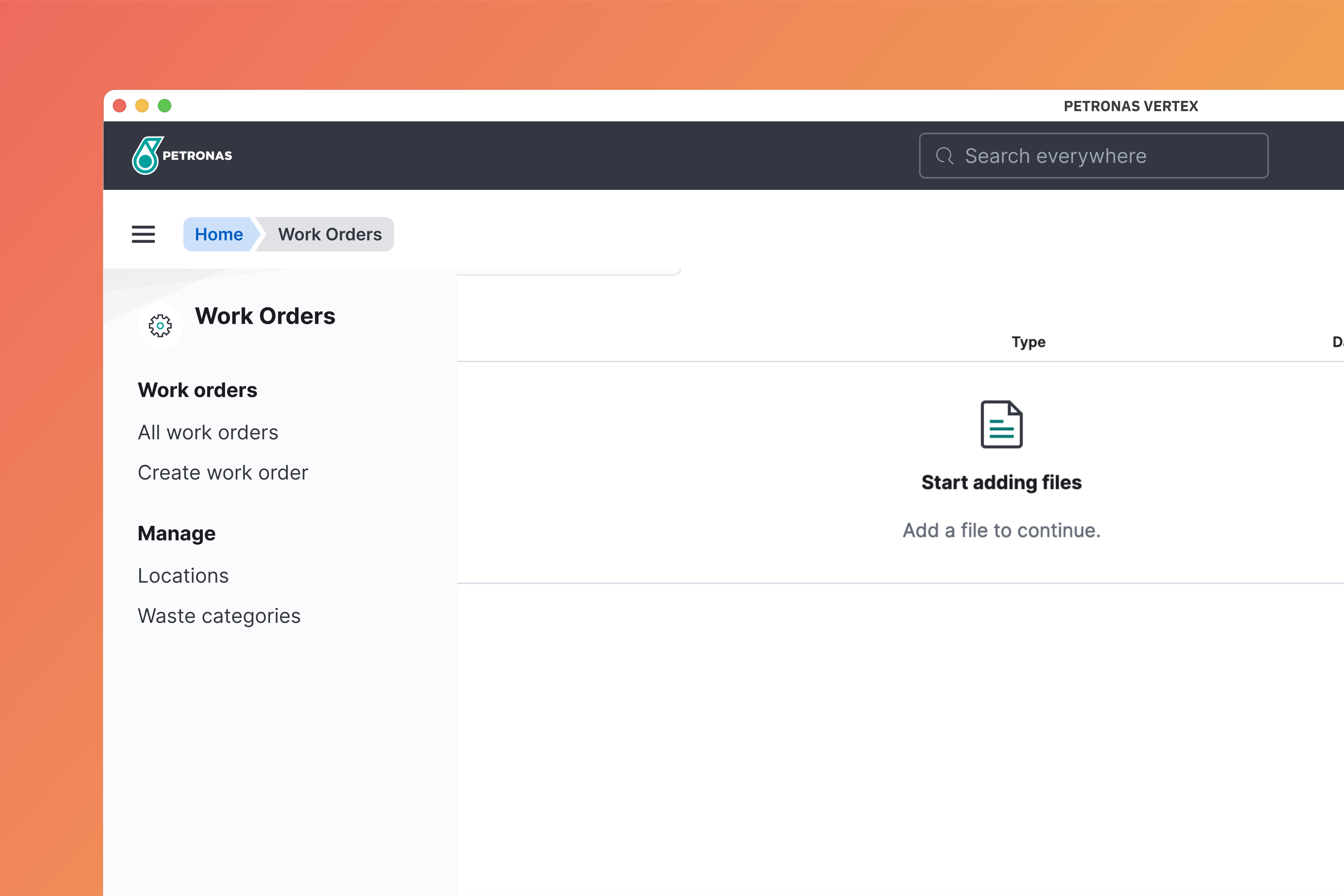
Work Order
Create and manage work orders.
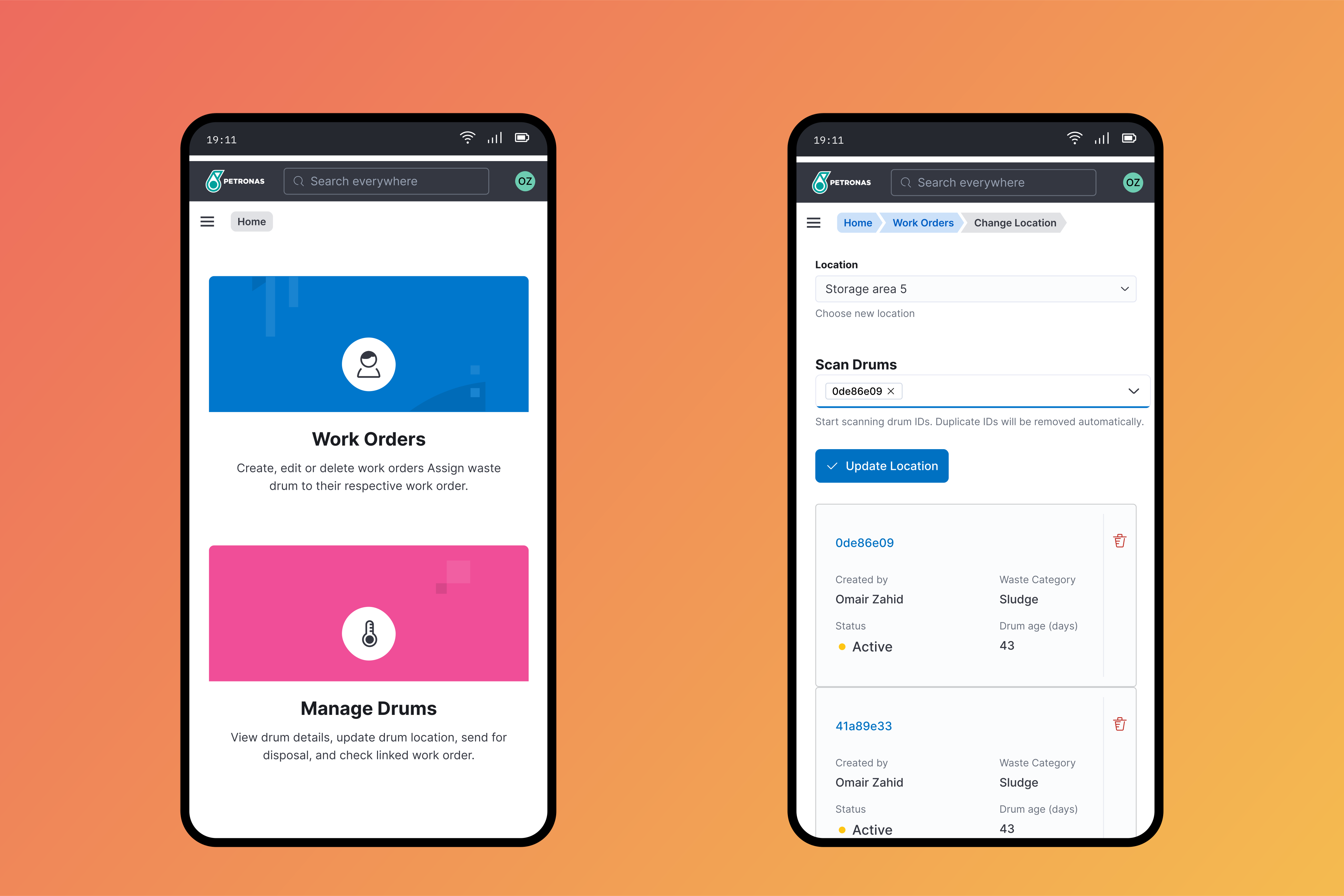
Overview
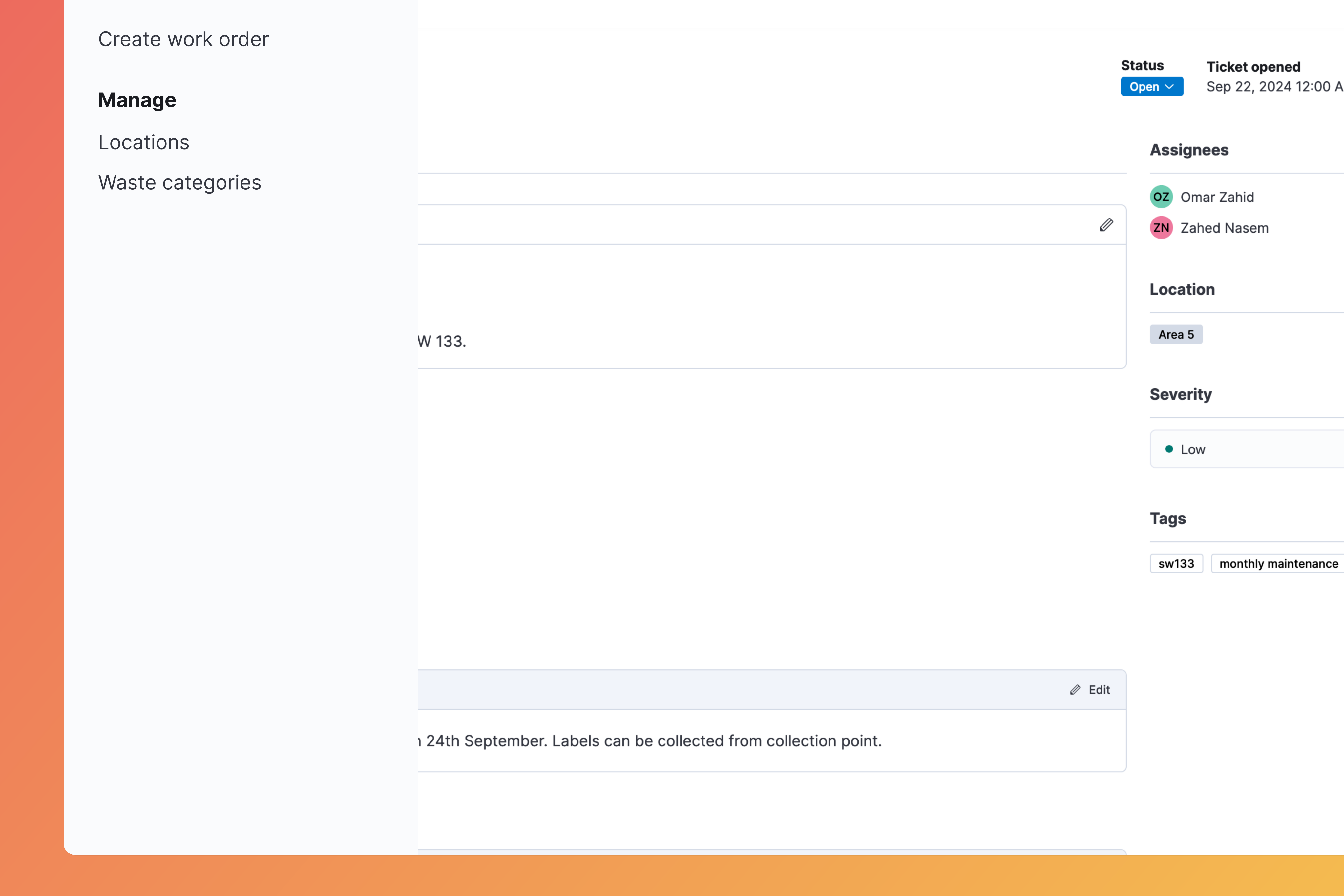
Before commencing any activity that will generate scheduled waste, the user will create a work order to which all generated waste will be linked to.
The work order page also contains a discussion module where user can pass on instruction, assign task, attach files and assign tags.
Creating Work Order
Login to Vertex
Login to Vertex using your credentials.
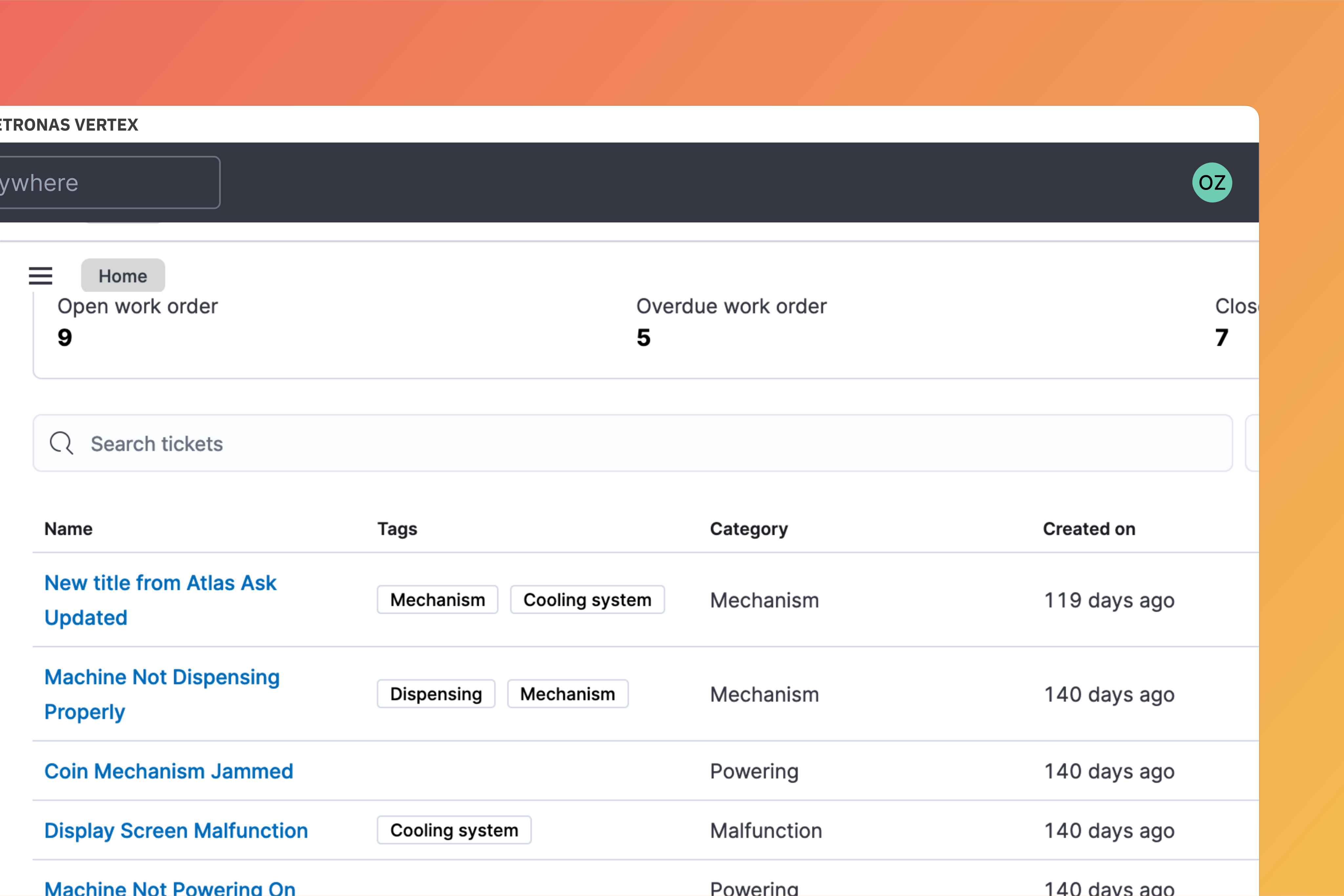
Go to work order module
At the home page, select Work order.

Create new work order
Click on Create work order button at top right corner.
Create work order button is located at top left hand side in mobile view.
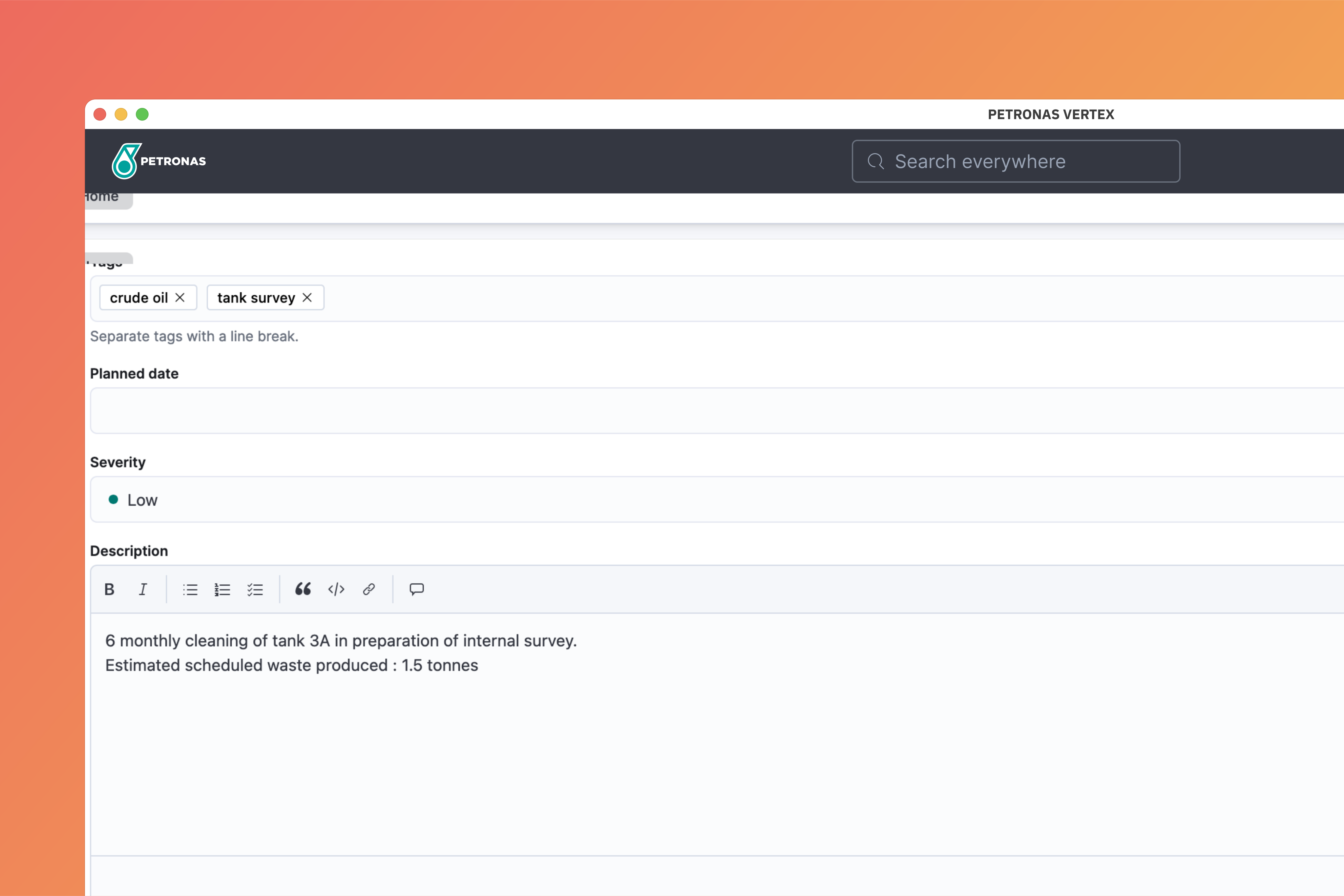
Fill up form
Fill up the title, date, and description. All other fields are optional. Click Create work order to confirm.
Discussion Module
All work order page comes with a built in discussion module where users can collaborate with each other by assigning task, asking questions, attaching files or passing any information.
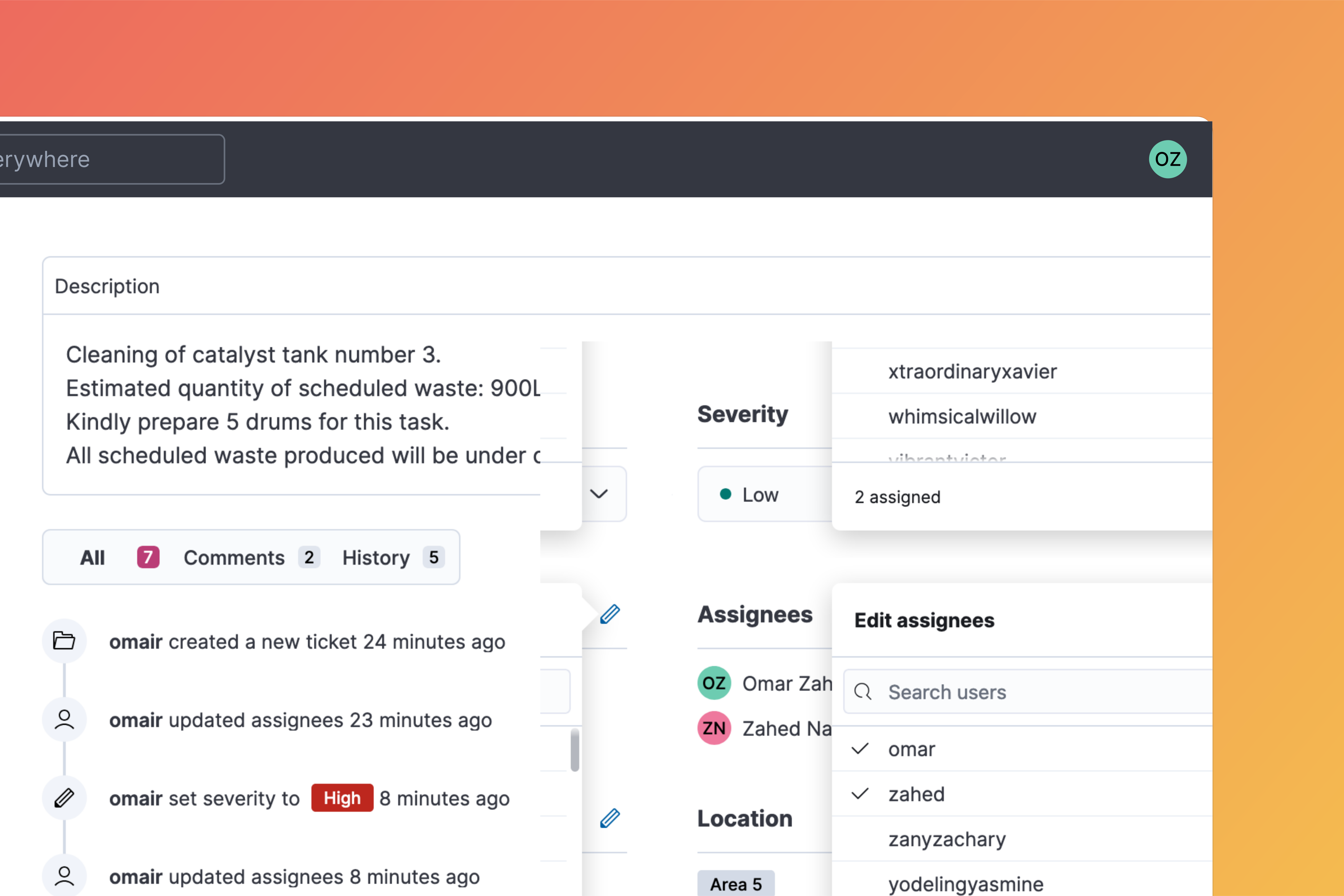
Assign work order
To assign task to another user, click on the edit icon ✎ at the assignees section. A dropdown menu will appear. Update assignee by selecting or deselecting name from the list. Click anywhere on the screen to update selection.
Add comments
User can add comments or instructions which can contain text, code, and images through the markdown editor at the bottom of work order page.
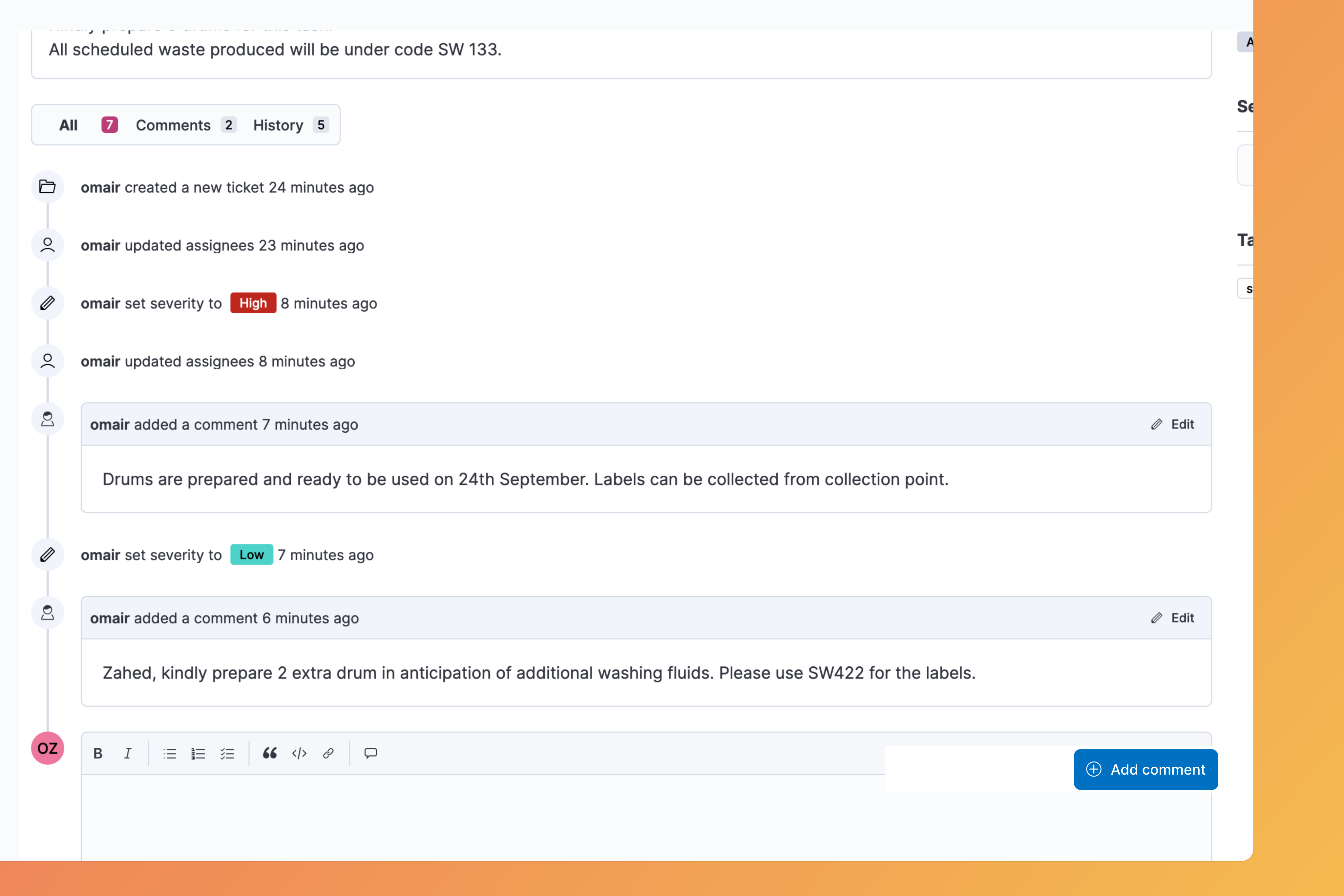
Besides this default markdown content, the base editor comes with built-in plugins that let you add emojis, to-do lists, and tooltips.
Attach files
To attach files, go the the files tab on work order page.
Click on Add files button. Select or drag and drop a file. Click upload to confirm.